Ember, Backing up your Library and iCloud
· Damien
The latest version of Ember for Mac comes with a particularly useful feature: library backups. In this post I thought I’d share our motivations to add the feature, when it might come in handy and how to use it.
iCloud
First things first: iCloud. Since version 1.2 Ember has been supporting iCloud to store your library. Ember uses two different iCloud technologies to keep your library in sync:
Ember Documents in iCloud
When you add an image to Ember, your images are stored as an Ember document. This format allows Ember to keep various pieces of information such as annotations, thumbnails, composited version of the images all in one place. These documents are stored in the application sandbox and when using iCloud inside the Mobile Documents folder. iCloud takes care of uploading and downloading these documents and it works incredibly well.
Ember Metadata in iCloud
In order to make Ember as fast as possible, even when dealing with thousands of snaps, we keep a database containing the metadata for each snap. This way, finding all snaps in a collection or searching snaps matching a particular tag is only a simple query and is extremely fast. If we had to inspect thousands of documents in the file system every time you search, things would be much slower. Another reason for storing the metadata separately is iOS. The metadata for Ember is quite small (much smaller than the documents). This means that Ember for iOS can still display the entirety of one’s library, support searching, creating and displaying collections, without having to download a single snap document. Given the space constraints on iOS this is a very handy feature.
We use Core Data with SQLite to store the metadata, and eventually decided to adopt Core Data with iCloud. While Core Data with iCloud had some issues in the past, things have much improved with the launch of OS X Mavericks and iOS 7, and given the importance of iCloud in Apple’s strategy we felt that adopting iCloud Core Data offered the best choice for the longer-term evolution of Core Data sync. We’ve been working hard on implementing Core Data with iCloud in Ember since coming back from WWDC last year and after a few months of testing over the summer we shipped it as part of Ember 1.2.
I am pleased to report that it’s been working pretty reliably so far. It’s been amazing to be able to use Ember of both Mac and iOS with snaps magically appearing on each device.
However after a while we started to receive some support requests from users for whom Ember would just not sync or would stop syncing overnight. We also started getting a few crash reports where users would see Ember quit unexpectedly as a result of Core Data itself crashing whilst processing the changes from iCloud - for which we simply cannot do anything about.
This is obviously frustrating. Every bug report is bad but, trust me, there’s nothing worse than the feeling of receiving crash reports for issues you have absolutely no means to fix. Luckily these issues are quite isolated but one report is still one too many.
We decided to add some iCloud recovery options in version 1.2.1 to rebuild your library based on what’s stored in iCloud, or even completely reset it if need be (you can access these options by holding the Option key in the Ember menu and selecting the iCloud submenu).
Rebuild is interesting since it removes all local data and rebuild the entire database from content in the cloud. If one machine stops syncing but others keep working just fine, it might be a good idea to use rebuild so that it’s brought back on track with the rest of your devices.
While both options can definitely help recover from most iCloud problems, each incurs the potential risk of data loss. We care about your data as much as you do (after all, we use Ember with iCloud ourselves) and we completely understand that dropping “you might lose some of your data” in a support email is never acceptable.
Introducing Library Backup
With Ember 1.3 we are introducing a new feature: library backup.
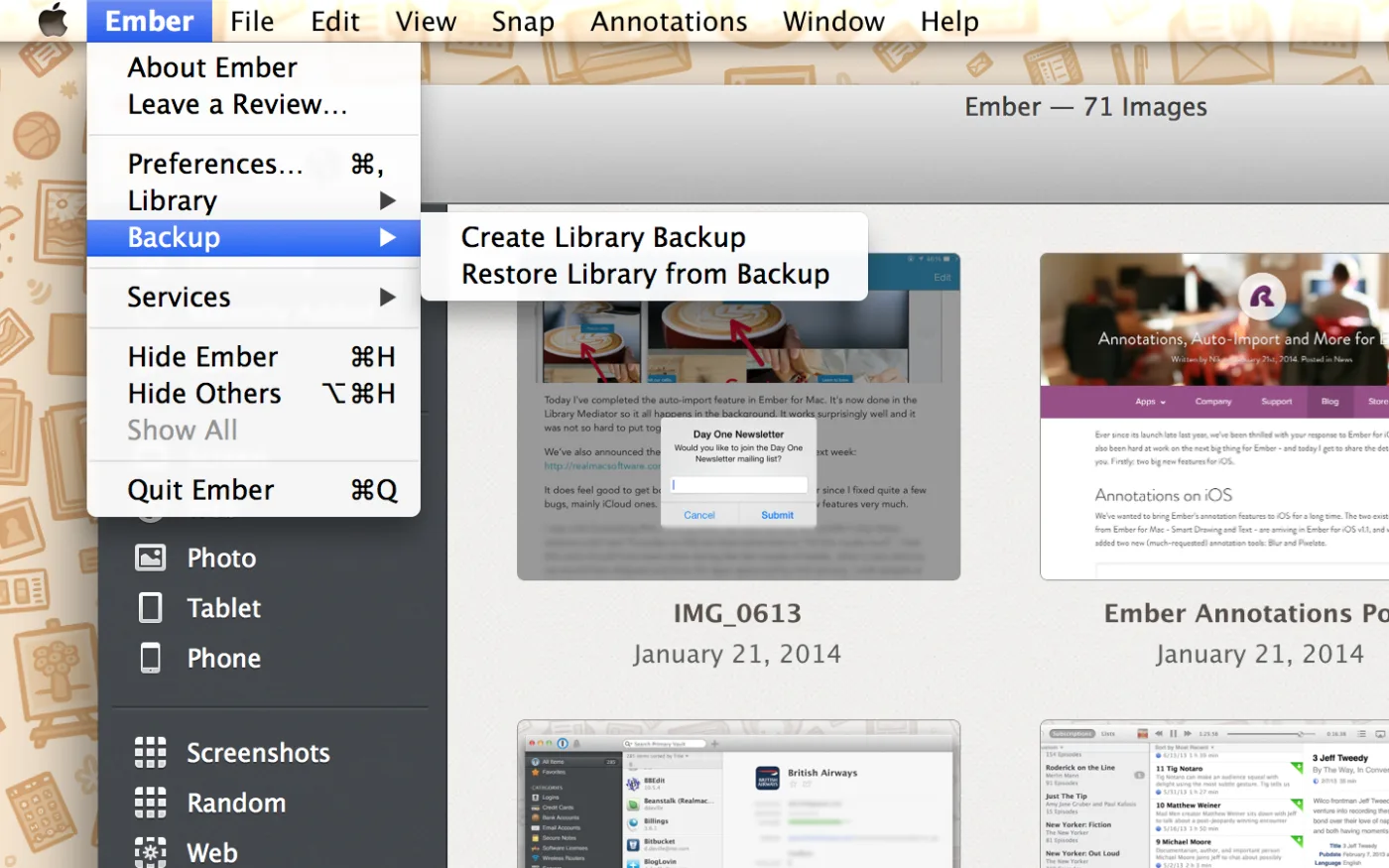
You can use this option to back up the entirety of your library in one convenient file to your preferred location. This backup will include all your documents and the metadata associated with each of them.
Should you ever experience problems with your library and wish to restore from previous backup, you can simply choose the “Restore library from backup” option. Your entire library will then be replaced by the content from the backup. This is also very useful when setting up a new machine if you’re not using iCloud. Instead of peeking inside the ~/Library folder to restore Ember’s data you can simply export your entire library as a backup from your original machine and restore from this backup on your machine! Super handy.
As I mentioned above, Ember documents are pretty safe in the sandbox and very unlikely to ever suffer from corruption. Since the metadata is a slightly more fragile part, we also automatically create small metadata backups at least once a day and every time you launch Ember. These backups are saved in the application sandbox and are available should you ever decide to use the “Restore iCloud Library Metadata from Backup”. This advanced iCloud recovery option will present you with an Open Panel to choose a metadata backup file.
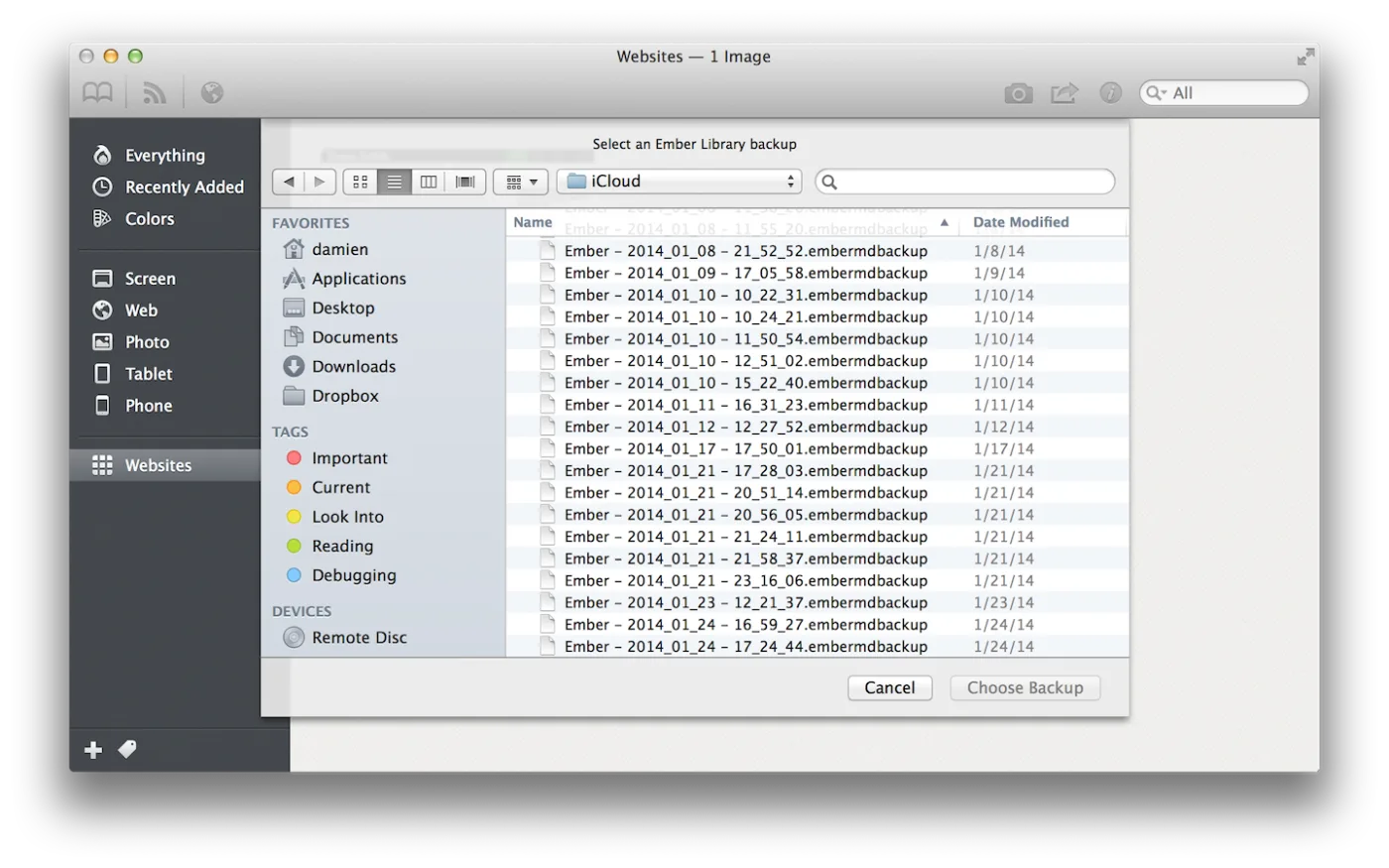
Once a metadata backup has been selected, Ember will confirm the number of images that will be in your library once restored before allowing you to actually proceed with restoring.
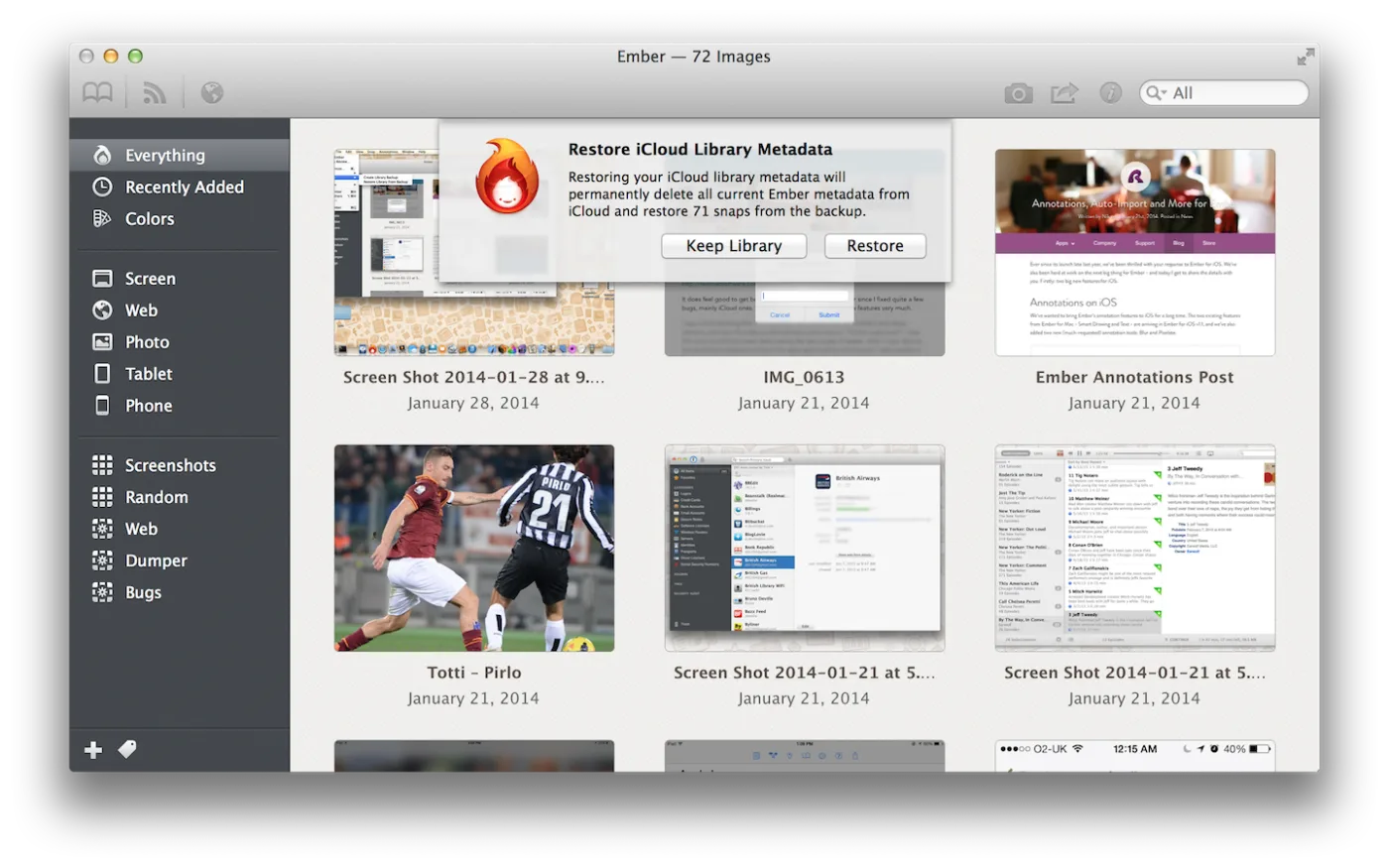
Should you go ahead and restore from the chosen backup, Ember will replace the current metadata on your device with the one from the backup. It’s important to note that if you’re storing your library in iCloud, the metadata will be restored across all your devices.
We’re confident that backups will help you keep your Ember data even safer, and hope that the Library backup feature helps customers who prefer to manually backup keep their data secure.
On top of Library backup, Ember 1.3 has plenty of other new features that I think you’ll love. It’s available now on the Mac App Store. You can download a free demo from our website - and don’t forget to check out the latest update to Ember for iOS too!