
Squash, the image compressor for Mac
Batch compress, crop and resize images in seconds. Go further with layered watermarks and filters, file renaming, edit metadata and so much more.
Squash 4 · macOS Sonoma 14.6 or later · Release notes
Compress images on your Mac
Squash is an image compressor for Mac that shrinks, resizes and converts whole batches of photos in one go. Drop in a folder, pick a format and a quality, and Squash exports every image with a smaller file size and a look you can check side by side with the original.
It’s made for the image jobs you repeat: optimising photos for a website, turning iPhone HEIC files into JPGs, resizing a client shoot, or watermarking product shots. Save the settings as a preset and the next batch takes one click.
Two-minute tour · Recommended by Macworld, 9to5Mac and MacSources.
Batch compress, resize and convert
Drop in your images, choose your settings, and let Squash get to work.
Smaller files, same quality
Compare your image using the built-in split view to find the sweet spot between quality and file size.
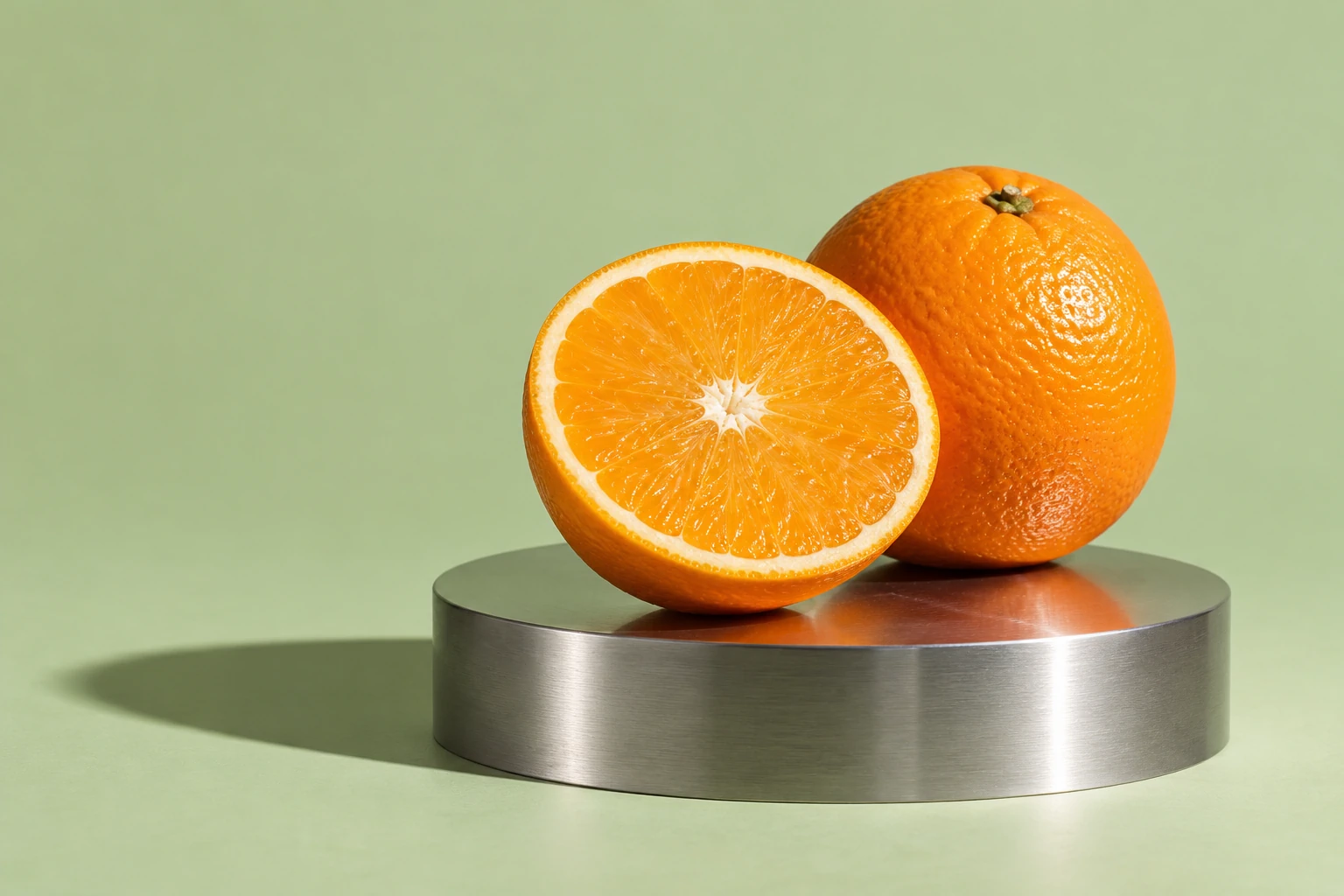
4.8 MB After · JPEG
98 KB
Format
FormatJPEG
Quality70%
Drag to compare. The before and after view on this page is for demonstration purposes only; download Squash 4 to use it on your own images.
Citrus journal
Export WebP and AVIF for faster websites
Give your website less to load. Convert to WebP or AVIF, set a maximum width and compress the lot, so pages open sooner on every device and score better on Core Web Vitals.
Convert HEIC photos to JPG on your Mac
iPhone photos arrive as HEIC files that websites, clients and older apps can’t open. Squash converts a whole album to JPG in one batch, with the size and quality you choose.
Drop in your HEIC photos. Drag them from Photos, Finder or an SD card, one file or a whole folder.
Choose JPEG and a quality. Add a maximum size if you want them smaller, and decide which metadata to keep.
Click Squash. Every photo is converted on your Mac, nothing is uploaded, and the originals stay untouched unless you say otherwise.
Convert to JPEG
Preset · iPhone to JPG-
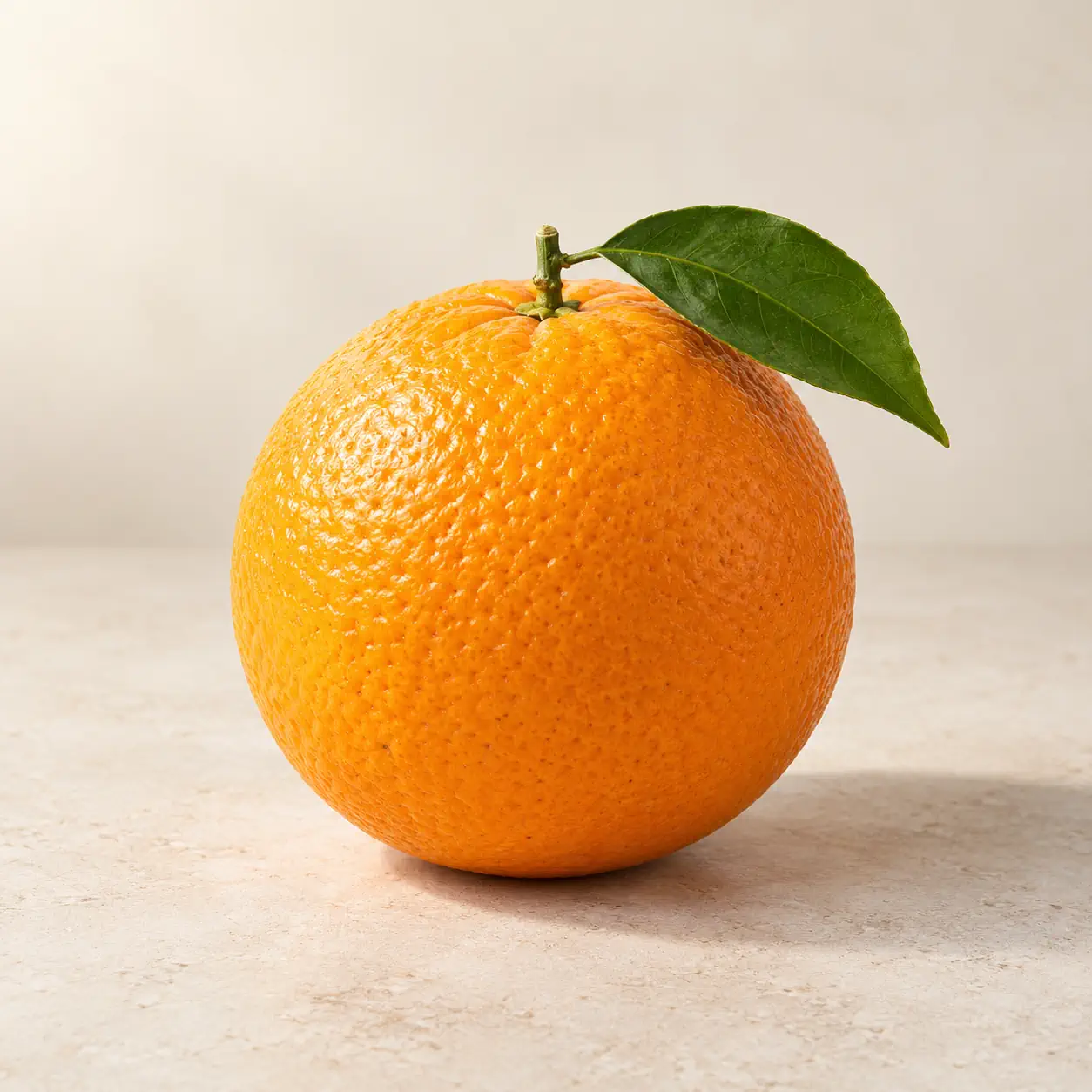 IMG_2048.HEIC3.4 MB
IMG_2048.jpg1.1 MB
-
IMG_2049.HEIC2.9 MB
IMG_2049.jpg940 KB
-
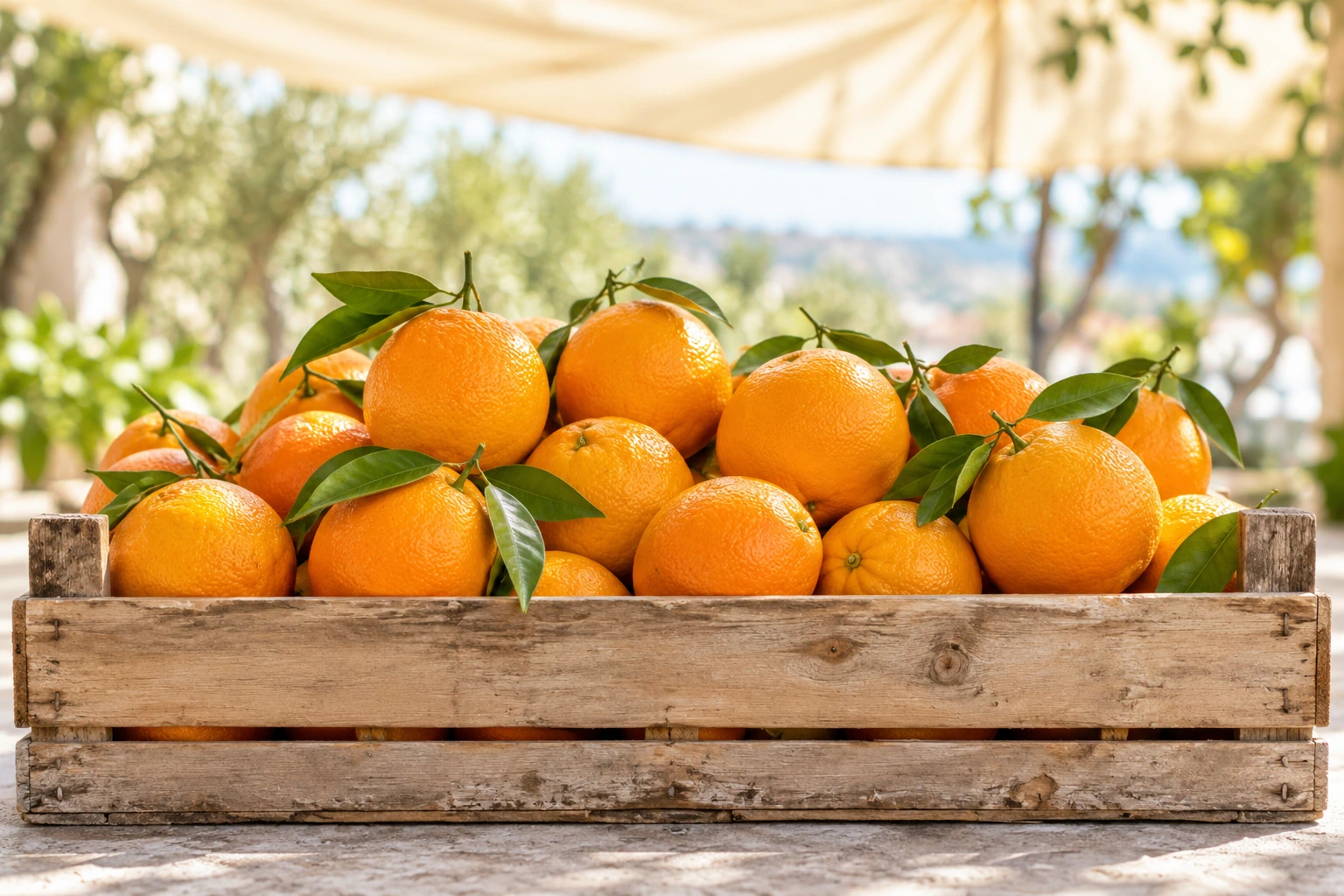 IMG_2050.HEIC4.1 MB
IMG_2050.jpg1.3 MB
-
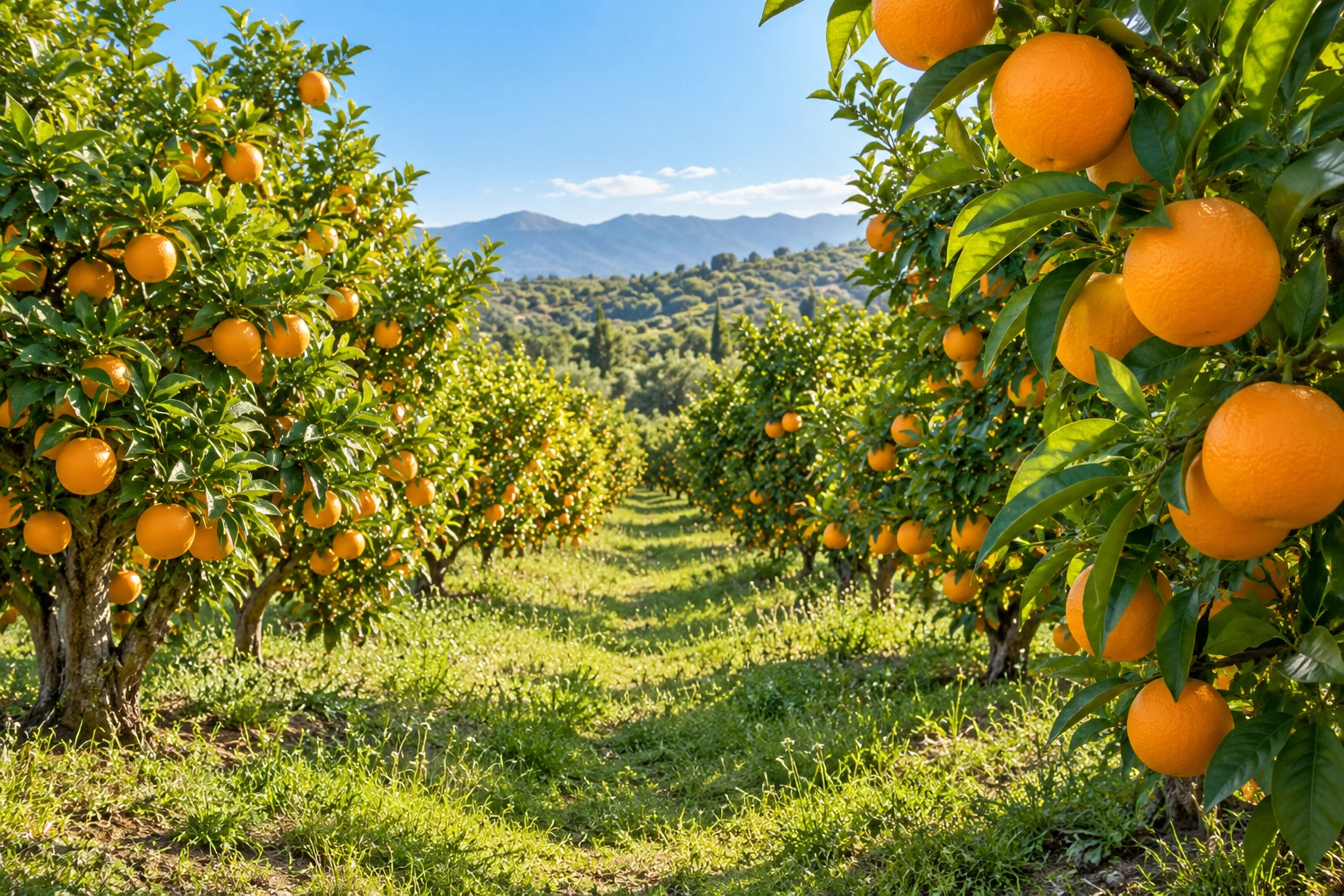 IMG_2051.HEIC3.7 MB
IMG_2051.jpg1.2 MB
Resize, rename, watermark and more
Discover all the tools to resize, convert, rename and get your images ready to share.
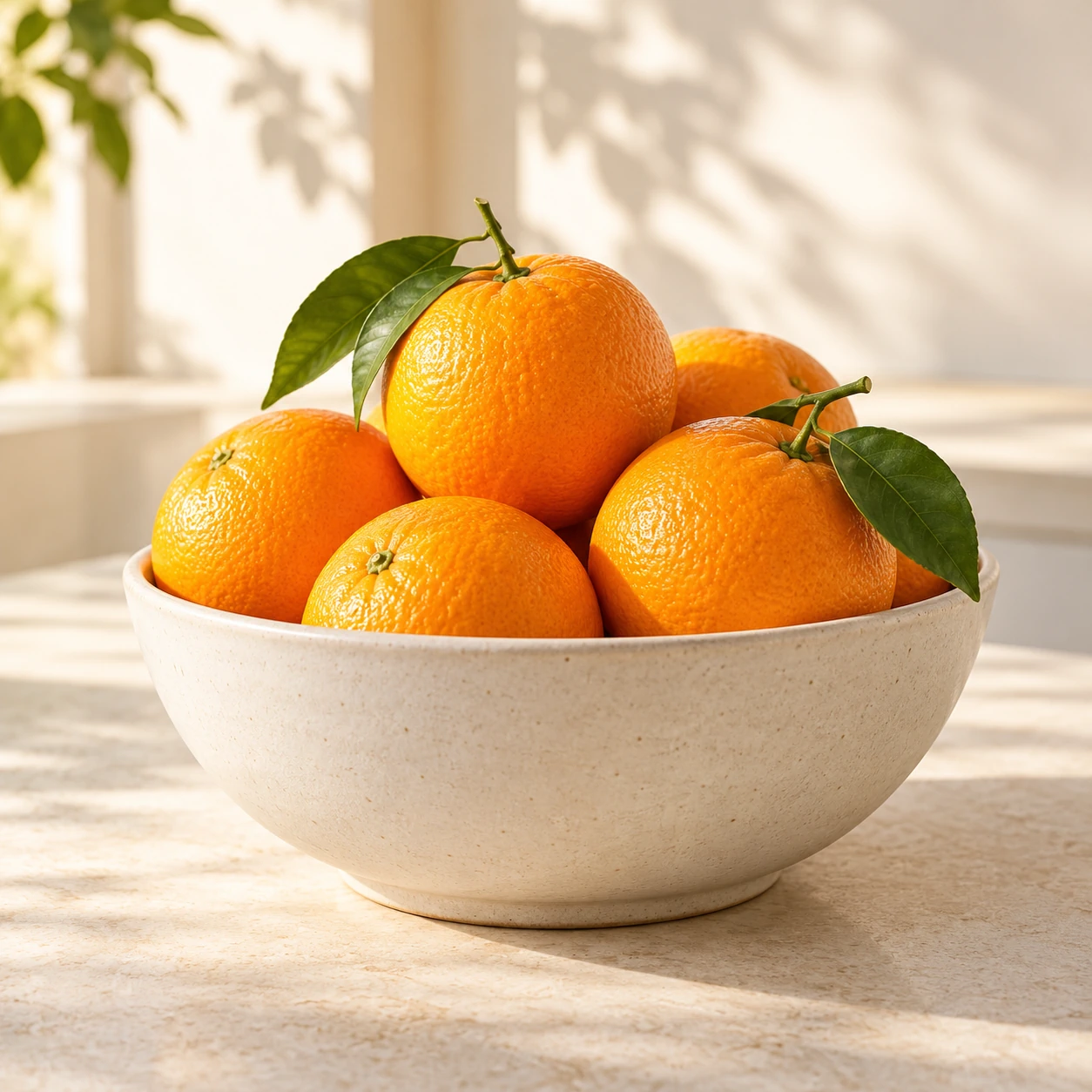
Batch Processing
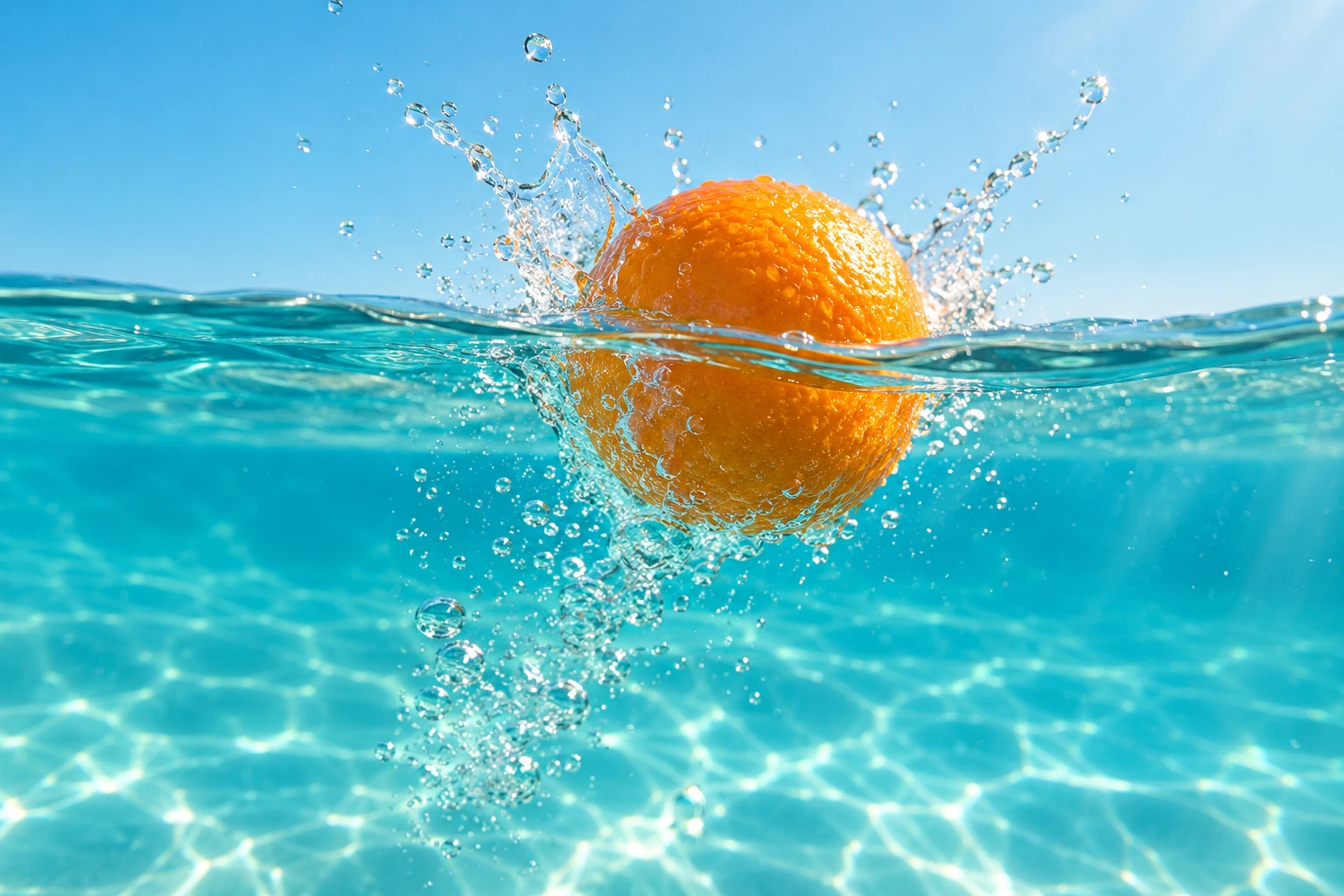
Add a whole folder, choose your settings once, and prepare all your images together.
2.1 MB
Compress
Make lighter images for websites, sharing and client delivery, with control over format and quality.
Original filename
IMG_2048.HEIC
Smart Rename
Use Apple Intelligence to automatically give every image a meaningful name.
Smart Crop
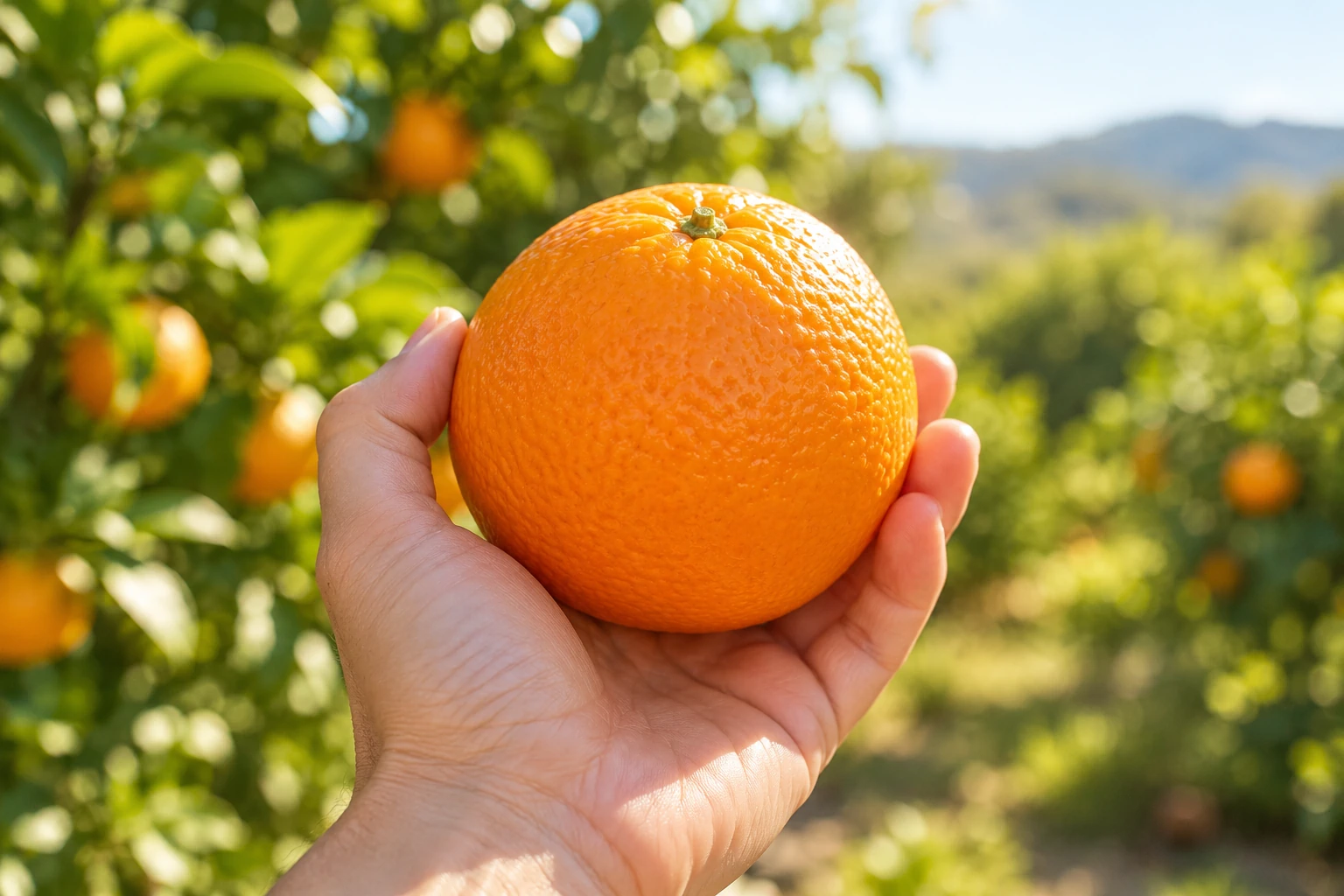
Automatically frame the subject in every image, powered by Apple’s Vision framework.
Contact details
Alex Morgan
Email address redacted
Highlight or Redact
Scan and hide email addresses, license numbers, names, and more automatically for all your images.

Watermark
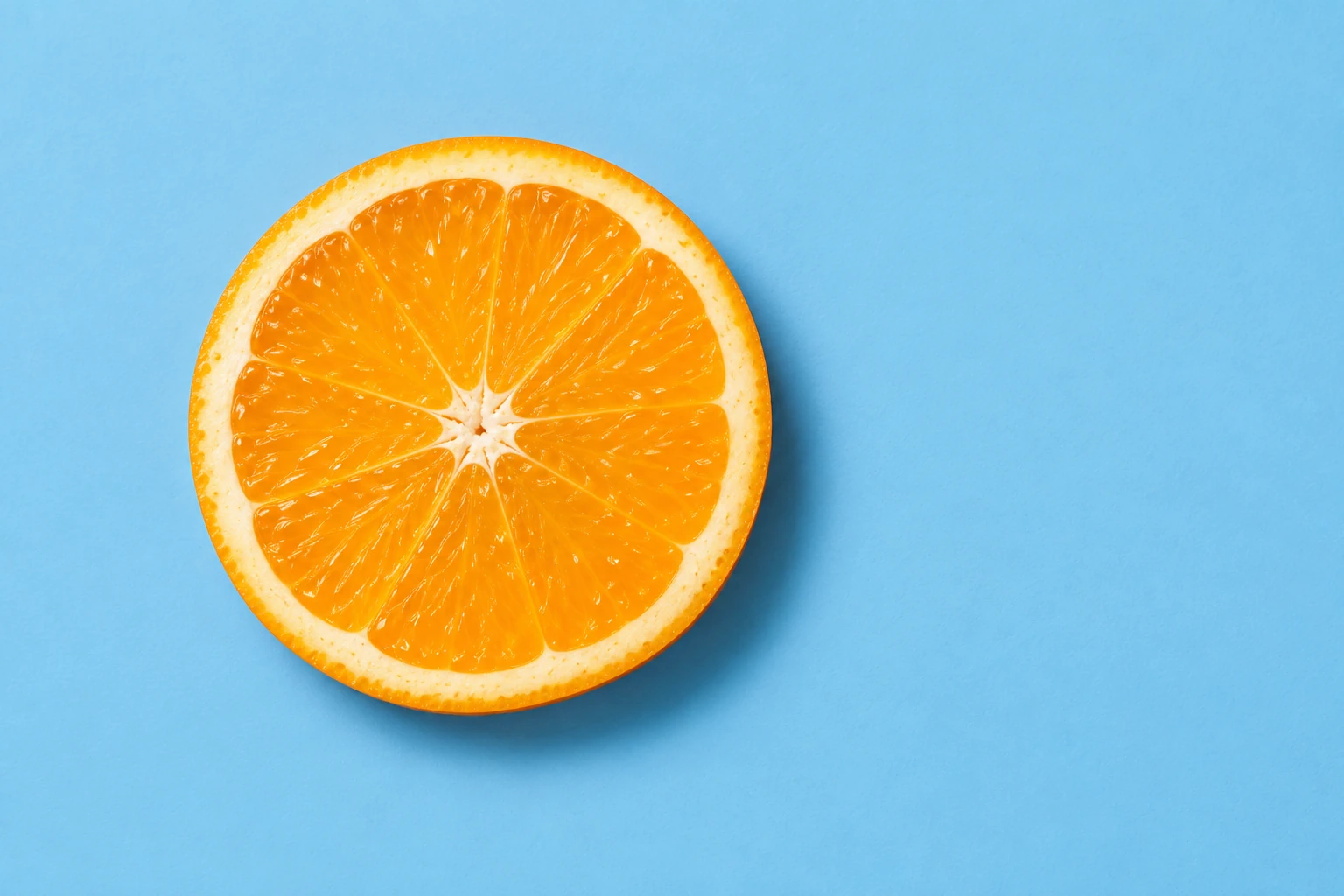
Easily add your logo as a watermark to a whole set of images in one export.


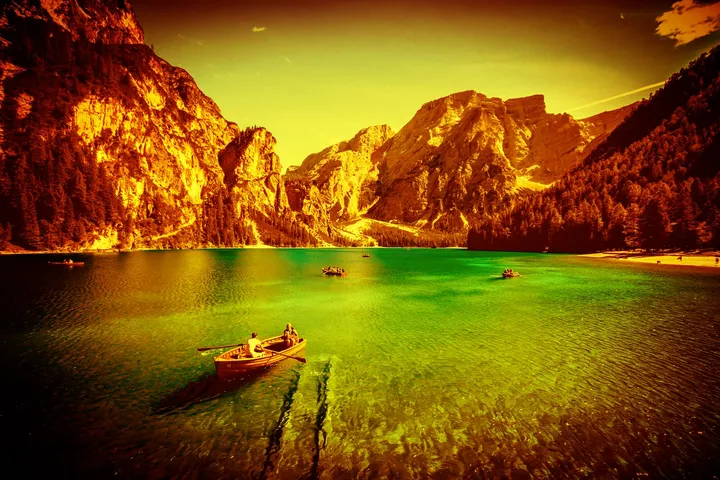

Photo Effects
Apply effects and filter packs to give a whole set of photos the same look. Drag across the photo to compare.

Originals
PNG
Optimised
JPG
Watched Folders
Choose a preset for a folder. Any images you drop in are automatically converted with those settings. Needs a licence.
1600 px
1200 px
Resize
Set a width, height, percentage or maximum size. Get the dimensions right across the whole batch.
Export preset
Website images
FormatWebP
Max size1200 px
Custom Presets
Keep your favourite export settings ready to use, so the next batch starts with the right setup.
Remove Metadata
Choose which metadata to keep, including camera details and GPS location, before sharing your images.
DNGCR3NEFARW
RAW Import
Bring your camera originals into Squash and prepare them for sharing.

Speak my language
Localised in English, German, French, Italian, Spanish, Japanese, and Simplified Chinese.
Shortcuts
Use Squash in the Shortcuts app to automate the image jobs you do every day.
Adjustments
Fine-tune the look of your images with built-in adjustments before you export.
Auto Rotate
Turn sideways photos the right way up automatically, across the whole batch.
See Squash on your Mac
Beautifully designed, exclusively for Mac.

Batch
Made for the image jobs you repeat
Squash is a tool for people who prepare images every week, without opening a full photo editor each time.
-
Websites and web designers
Export WebP or AVIF at the exact width your layout needs, then drop the images straight into RapidWeaver, WordPress or any site builder. Faster pages, happier visitors, better rankings.
-
Photographers
Import camera RAW files, resize a whole client shoot, add your watermark and strip the location data before anything leaves your Mac. Save a preset per client.
-
Shops and social media
Make every product shot the same size, rename files so they’re searchable, and keep a preset for each platform you post to. A new batch is ready in seconds.
Filter packs for Squash
Give your photos a whole new look in one click.
Slow
Days 12 looks · Warm, soft, timeless
Colour
Riot 12 looks · Bold, vivid, electric
Analog
Filters 35 looks · Retro, vintage, analog
Noir
Film 12 looks · Moody, classic, B&W
Days
12 looks · Warm, soft, timeless
ColourRiot
12 looks · Bold, vivid, electric
AnalogFilters
35 looks · Retro, vintage, analog
NoirFilm
12 looks · Moody, classic, B&W
Browse All Filter Packs
Sold separately · Requires Squash 4
Convert HEIC, WebP, AVIF and more
Squash supports a wide range of import and export image formats.
Import Formats
12 formatsPhotos, graphics and camera originals.
- JPEG.jpg · .jpeg
- PNG.png
- GIF.gif
- BMP.bmp
- PSD.psd
- TIFF.tif · .tiff
- HEIC / HEIF.heic · .heif
- WebP.webp
- AVIF.avif
- JPEG XL.jxl
- DNG.dng
- Camera RAWCR3 · NEF · ARW + more
Export Formats
7 formatsChoose the right format for every batch.
- JPEG.jpg
- PNG.png
- WebP.webp
- AVIF.avif
- HEIC.heic
- TIFF.tiff
- JPEG XL.jxl
Need another format? Request it on the forum
Squash also imports other macOS-supported image and camera RAW formats.
Squash vs ImageOptim and online image compressors
Free tools are fine for one file. Squash is for the day you have two hundred, and for photos you’d rather not upload to a stranger’s server.
| Feature | Squash for Mac | Online compressors | ImageOptim |
|---|---|---|---|
| Where your images go | Stay on your Mac | Uploaded to a server | Stay on your Mac |
| Batch processing | Whole folders, plus watched folders | Often capped per upload | Yes |
| Resize and crop | Width, height, percentage, max size and Smart Crop | Sometimes, one image at a time | No |
| Convert formats | HEIC, WebP, AVIF, JPEG XL, PNG, TIFF and more | A few formats | Optimises in place |
| Rename, watermark and metadata | All three, across the batch | No | Strips metadata only |
| Presets, Shortcuts and automation | Presets, watched folders and Shortcuts | No | No |
| Compression | Lossy or lossless, with a split view to check | Fixed settings | Lossless by default |
| Price | One-time licence. Free to use with 5 exports a day | Free with limits, or a subscription | Free and open source |
ImageOptim is a good free choice when all you need is lossless optimisation. Squash is the step up when you also need to resize, convert and automate.
Praised by the Mac press.
Reviewed and recommended since the first version shipped in 2016.
-
“I recommend Squash without reservation for anyone processing images in bulk with particular requirements, especially if you don’t own or want to learn higher-end software with a thousand other features.”

-
“Squash for Mac is a thoughtfully designed utility that hits the sweet spot between simplicity and functionality.”

-
“I’ve been testing Squash, and it does an extremely impressive job, both in terms of ease of use and end result.”

-
“Resizing and converting images for web usage, a tool like this is a no-brainer purchase.”

Squash questions, answered
Formats, batch work, automation and how to get started with Squash on your Mac.
Formats and conversion
Batch work and automation
Getting started
Get Squash for Mac.
Free to use, with 5 exports a day. Buy a licence to remove the limit.
Read the Squash release notes