How We Use Slack
· Nik
One of the biggest friction-points for our team as we’ve added members to the team has always been communications. iChat (remember that?) worked well when there was just four of us, and team discussions were mostly in-person. If we need a group chat, we just used an AIM chatroom (in hindsight, a bad idea - anyone who knew the room name could join!).
Over time, we’ve used various options: a private Twitter account that we all could post to & read, something significantly more formal in Podio and more recently Campfire. We’ve used awesome native apps like Flint for Campfire too, however the recent announcement of 37Signals’ new focus as simply “Basecamp” reiterated that Campfire hasn’t seen many significant changes in recent memory.
After exploring our options, we took the plunge with Slack - a new service built by some of the original Flickr team. Slack is a brilliant drop-in replacement to Campfire: we’ve a room (or “Channel” as they’re known) for each of our products, along with a General team chat. Just like that we’d replaced Campfire - and before long realised that Slack enabled us to do far more than just replace Campfire.
Direct Messages
Over the last year, Messages.app on OS X has proven time and again to be unreliable for us with AIM and iMessage. Message routing with iMessage seems (at best) to be pot-luck, with our phones chiming despite being active on our laptops.
Slack’s direct messages feature keeps all our communications together: one centralised place where the team can work, with push notifications to iOS devices being configurable to only be sent after a period of inactivity.
Integrations
One of the best features in Flint (back when we used Campfire) was that Flint did smart things with content that we posted. Links to tweets expanded, GIFs downloaded and played. Slack takes this even further: snippets from blog posts, summaries from App Store links, Instagram images inline - the list goes on. However, the smartest bit of Slack is the Integrations feature, that allows you to add support for other services to your account without having to write code yourself.
To keep the team up to date on posts from our product Twitter accounts, tweets (not replies from support!) are posted in each product’s Slack channel. The infrequently-updated Apple Developer News RSS feed is set to post links to our General channel. We don’t post a lot of updates (after all, we’re here to work on our product, not consume content) however these integrations help keep the team aware of what other team members are doing.
One other integration we’ve been using is one from our friends at GoSquared, which pipes in GoSquared traffic notifications to a Slack channel. If the website suddenly receives a spike in traffic, the team will know all about it.
Slackbot
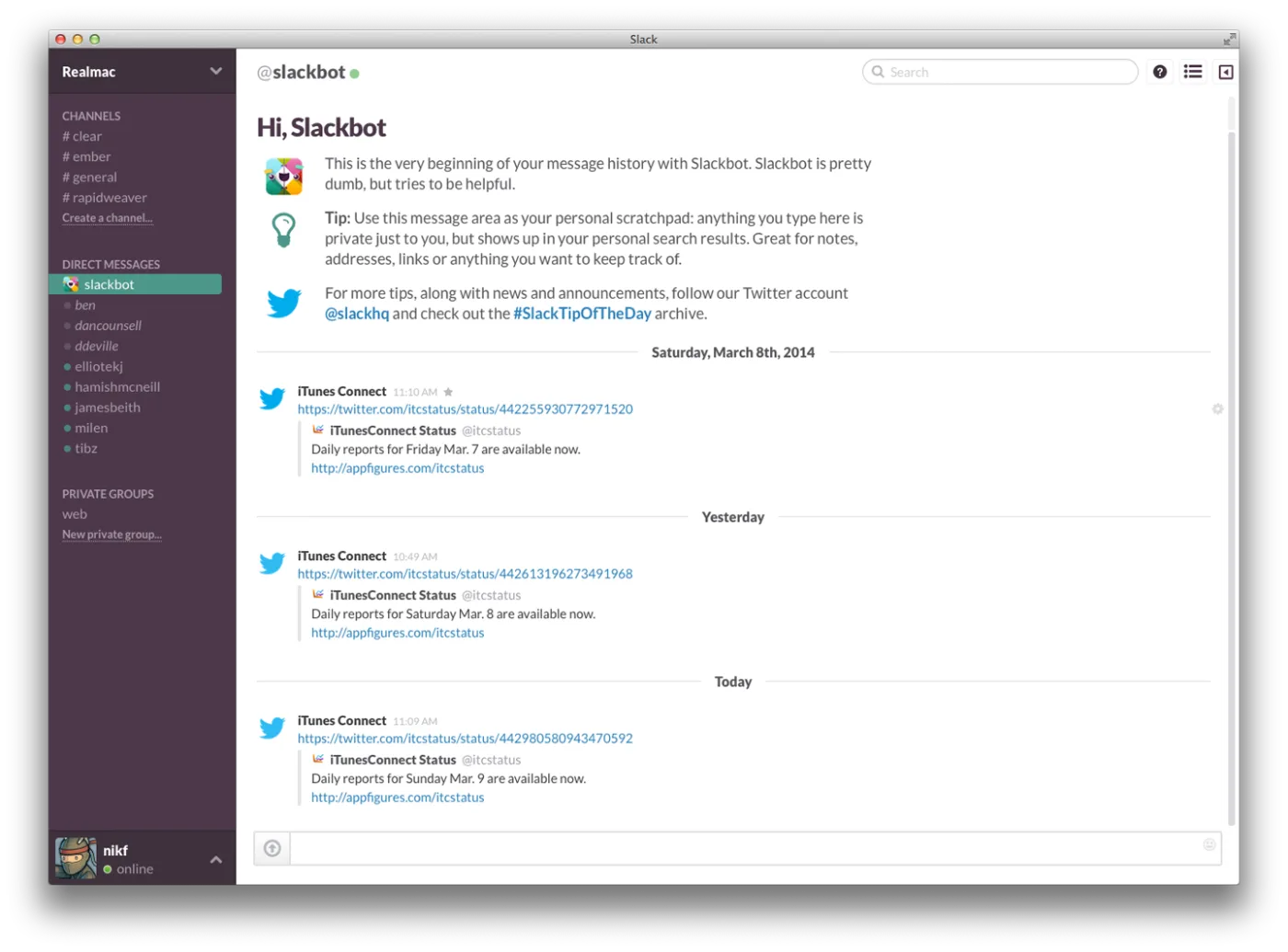
Slackbot is the built-in assistant, and you can set up triggers for Slackbot (keywords, for example, can add some personality into the chatroom). You can also communicate with Slackbot in a Direct Message chat. It’s referred to as a “personal scratchpad”, however you can also use this scratchpad to pipe content to via integrations as well. For example, instead of following the iTunes Connect Status Twitter account, I can set Slack to channel its tweets to my (personal) Slackbot chat, avoiding the need to follow the account or have Twitter open! When the daily iTunes Connect sales reports are available, Slackbot will let me know.
Happy Campers
We’ve always been cautious about any service that claims to be a one-stop-shop to fix team communications: it’s normally a sign that the service is aimed at larger teams than ours, that the design is very stuffy and aimed at corporate customers, and overly-rigid in its workflow.
Slack is none of those things. There’s some things we’d really like to see (a native Mac app, for starters) but we’re pretty-much in love with Slack and constantly finding smart ways to improve our workflow with it.
If you’ve not tried Slack, and fancy $100 of credit towards a paid account we’d heartily recommend you sign up and give it a spin.