Mastering Command-Line iTunes Connect Submissions
· Nik
iTunes Connect. Two words that fill any OS X or iOS developer with dread. Two words to identify how developers submit their apps, In-App Purchases and Game Centre achievements for Apple’s review.
iTunes Connect is, of course, a critical piece of the Apple developer puzzle. However, inputting any serious amount of content requires more than a little bit of patience, good luck, and praying to the powers-that-be that iTunes Connect doesn’t kick you out before you’ve uploaded your marketing assets and copy.
As the person managing the localisation of our apps and App Store copy, I spend a not-inconsiderable amount of time dealing with iTunes Connect and you can easily lose an afternoon in the system when you’re refreshing up to 15 screenshots, the release notes and marketing copy in each localisation. It’s a similar story for the Mac - huge Retina screenshots that can only be uploaded one at a time make for a time-consuming and often infuriating process.
However, there’s a relatively little-known tool available from Apple that can ease your pain, allowing you to retrieve, pre-flight and upload your app metadata. In fact, if you’ve got Xcode installed, you’re already sorted - within Application Loader there’s a binary you can use in Terminal to do the legwork of retrieving and submitting app metadata.
So, fire up Terminal.app and follow along, adapting the Xcode path if you’re not using the Mac App Store version.
cd /Applications/Xcode.app/Contents/Applications/Application\ Loader.app/Contents/MacOS/itms/bin
Deep in the depths of Xcode, you’ll find the tool we need. iTMSTransporter is the binary we’ll be working with, and it’s worth noting that you can only use it from within the directory it’s installed. If you’re going to continue using the Terminal, I’d also recommend the tip in Transporter’s Quick Start Guide that you add an environment variable for Transporter to easily jump to this location.
Let’s get started by retrieving the metadata for an app that is already submitted and approved, so we can see what we’re dealing with. You’ll need:
- Your Apple ID used to access iTunes Connect (which must be an “Admin” or “Technical” role)
- Your Apple ID password
- The SKU you use to identify the app. Note: this is something you’ll have chosen - it’s not the numeric Apple ID your app is assigned automatically. You can find this out by visiting the App Information & Versions page in iTunes Connect
- The Transporter Quick Start Guide, and App Metadata Specification (available from the bottom of the Manage Your Apps page in iTunes Connect) for some light reading
Return to the Terminal (and be prepared for a “You need to install Java” prompt - Transporter is actually a Java binary):
bash iTMSTransporter -m lookupMetadata -u <Apple ID> -p <Your Password> -vendor_id <SKU> -destination <Folder to save the downloaded file>
The utility is very verbose, but that’s proved incredibly useful to understand a little more about how it interacts with iTunes Connect. If everything goes smoothly and you reveal the folder you entered as the -destination parameter in the Finder, you’ll find a
We keep all our iTMSP files in Git - if you’re considering doing the same, now would be a good time to git init on the folder that you’re storing the iTMSP files in and set everything up. It’s worth noting that the metadata.xml file also includes all the currently-scheduled pricing changes for your app (along with any In-App Purchases). To prevent this from being checked into Git, from where it could be reverted and inadvertently submitted to iTunes Connect we aim to remove all <interval> elements from the XML before committing - we also make a point of only scheduling price changes via the iTunes Connect web interface.
Currently, we work offline with the metadata.xml file to manage the App Store copy for our apps and their translations - sending them via the command line instead of the iTunes Connect interface saves a considerable amount of time and sanity.
Something To Help
Whilst Transporter has been a great improvement to our workflow, I’ve been itching to improve it further. To get things started I’ve built a small app that allows you to avoid both the Terminal and iTunes Connect itself to submit your iTMSP packages. It’s called Connecter, and the source is available on GitHub.
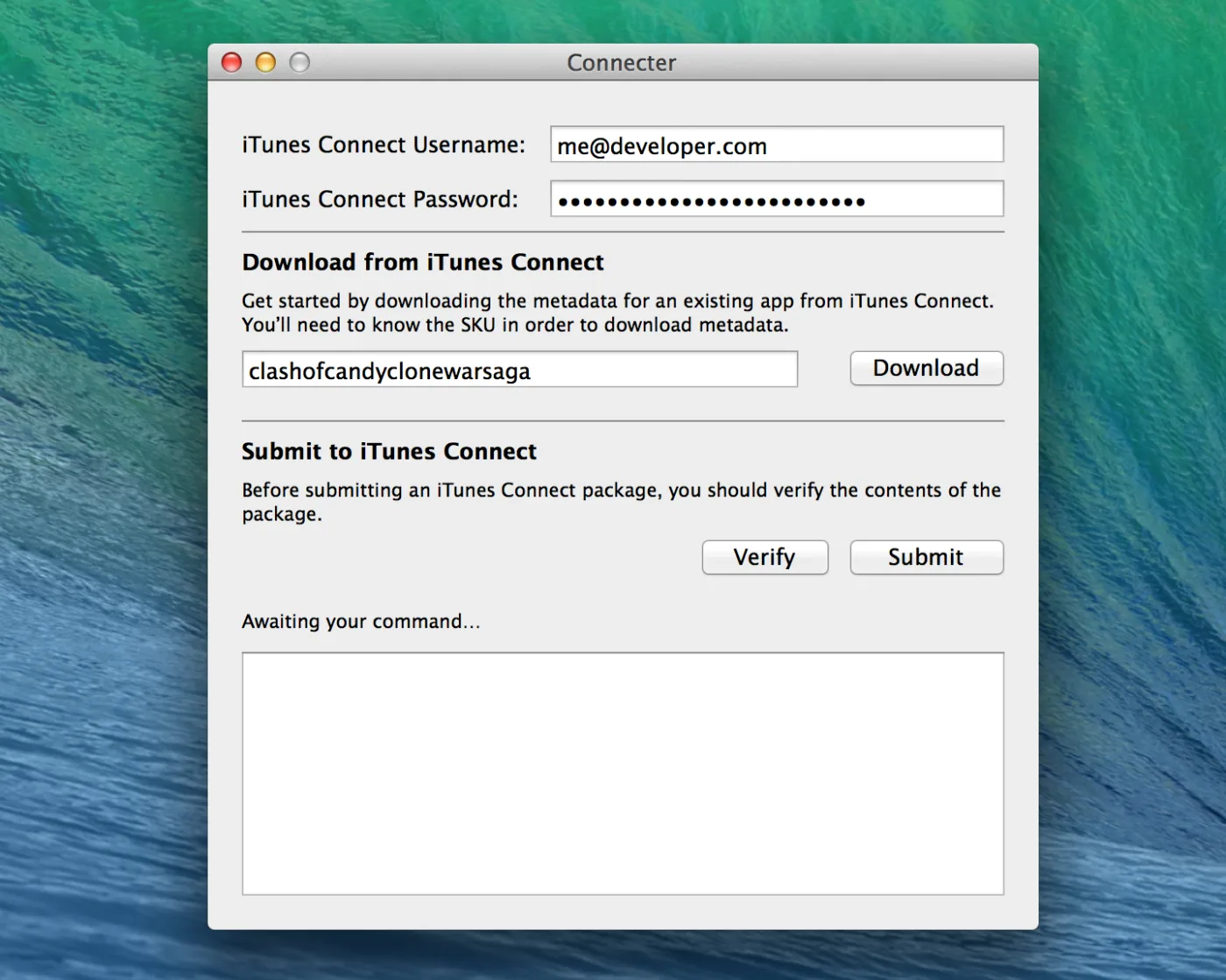
N.B. There’s no public API for iTunes Connect, and as such Connecter still necessitates some actions, such as creating a new version for an app, be completed in the iTunes Connect web interface.
Having spent some time looking at the metadata, it’s clear there are areas of the setup prime for some automation and improvement. Adding assets is substantially more laborious via Transporter, for example. To save unnecessary uploads to iTunes Connect, Transporter uses MD5 hashes to identify changes to your screenshots, and you really don’t want to lose an afternoon generating 15 hashes per locale. This particular problems is something I’m wanting to improve in our workflow in the coming months - the ability to have a repository that anyone can add localised screenshots and copy to, without having to edit the XML, would be a big timesaver.
Be Curious
I’d strongly encourage you to take a look at the metadata and learn about what you’re submitting. The cliché “with great power comes great responsibility” is particularly true here: you’re directly affecting the details and availability of your live apps, so proceed with caution!
If you’ve got any questions about Transporter or the new Connecter app, let me know. I hope Connecter saves you some time - and if you’ve got any problems, suggestions or pull requests be sure to file them on GitHub!
Thanks to Damien, our lead Ember engineer, for the comprehensive code review of Connecter!